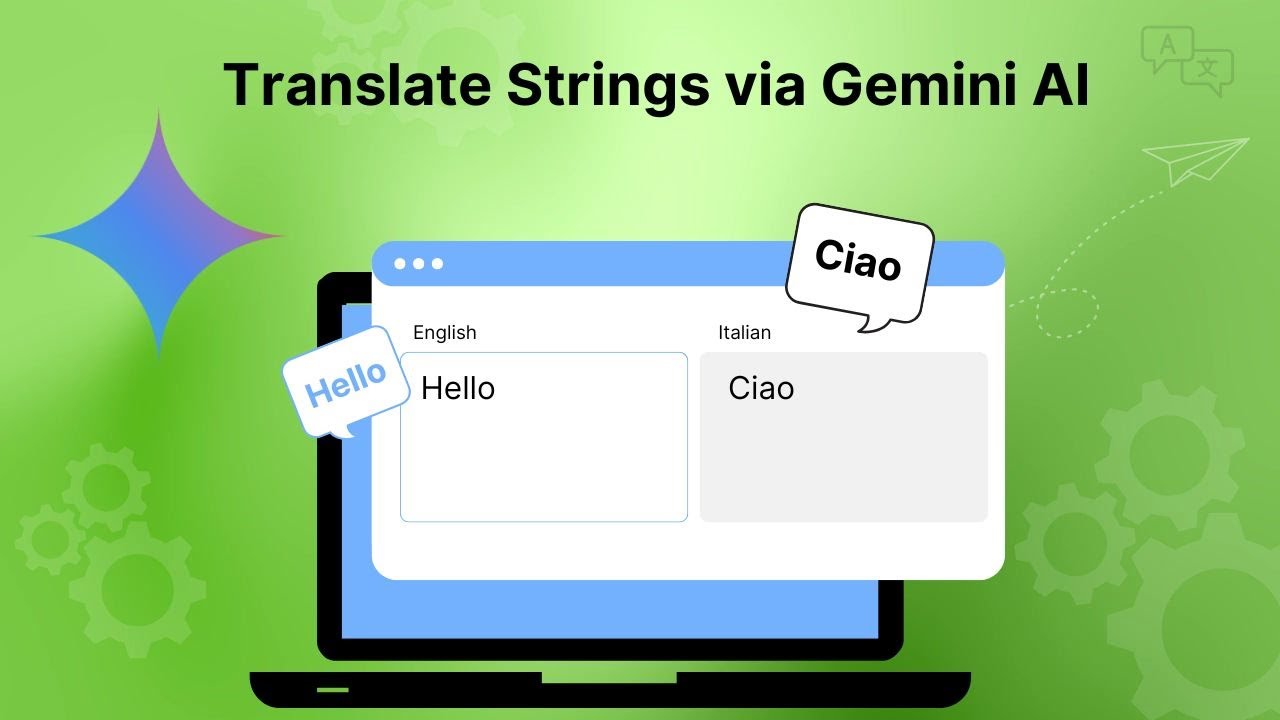
Gemini AI is a powerful tool that can be used to translate plugins or themes in WordPress. Once you select the language in which you want to translate your theme or plugin, follow these simple steps:
Note: Before using this feature, make sure the Gemini AI translation provider is enabled from the plugin dashboard.
Setting Up Gemini AI for Translation
- Click on the Auto Translate button.
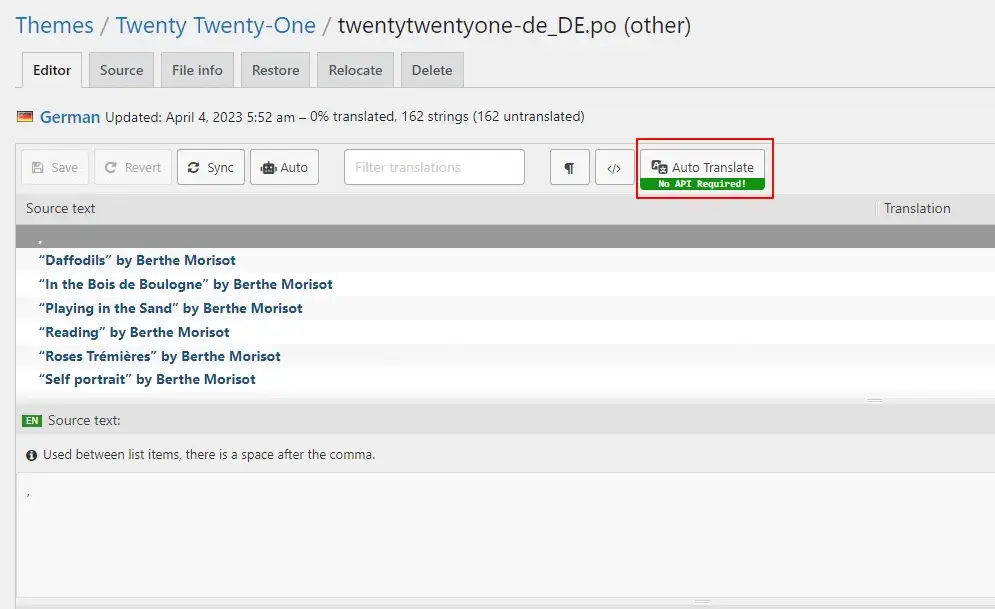
- A pop-up will appear. If you want to translate using Gemini AI, you must first add the Gemini API key by navigating to Loco Translate > LocoAI > Settings.
Important: Gemini AI translation requires a valid Gemini AI API key. The Gemini AI API key is not included with the plugin and is not provided as part of the plugin ZIP file. To use Gemini AI for automatic translations, you must purchase a Gemini AI API subscription separately and generate your own API key from your Gemini AI account. Once you have obtained the API key, enter it in the LocoAI Settings Dashboard to enable Gemini AI-powered translations.

- Choose GeminiAI as a translation provider.

- Once the translation provider is selected, the automatic translation process will begin.
Merge & Save Translation
- Once the translation is complete, click the Merge Translation button.

- A pop-up will appear. Click on Start Adding Process.

- Once you click on Start Adding Process. All the translations will get added to the loco translator string table.

- Click the Save button and then refresh the page.
Note that while automatic translation tools can be helpful, they may not provide perfect translations, and there may be inaccuracies or errors in the translation. Therefore, it’s always a good idea to have a professional translator review the translation if it’s critical for your business or organization.