
LocoAI allows you to connect your ChatGPT account and automatically translate WordPress plugin or theme strings without manually copying and pasting translations.
You can use the Copy & Paste method with a free ChatGPT account or the Sign in with ChatGPT method with a ChatGPT Go, Plus, or Pro account.
Follow these steps to connect ChatGPT with LocoAI and start translating your WordPress plugins or themes:
Set Up ChatGPT in LocoAI
- From your WordPress dashboard, navigate to Loco Translate > LocoAI.
- Scroll down to the AI Translations section and make sure ChatGPT is enabled.
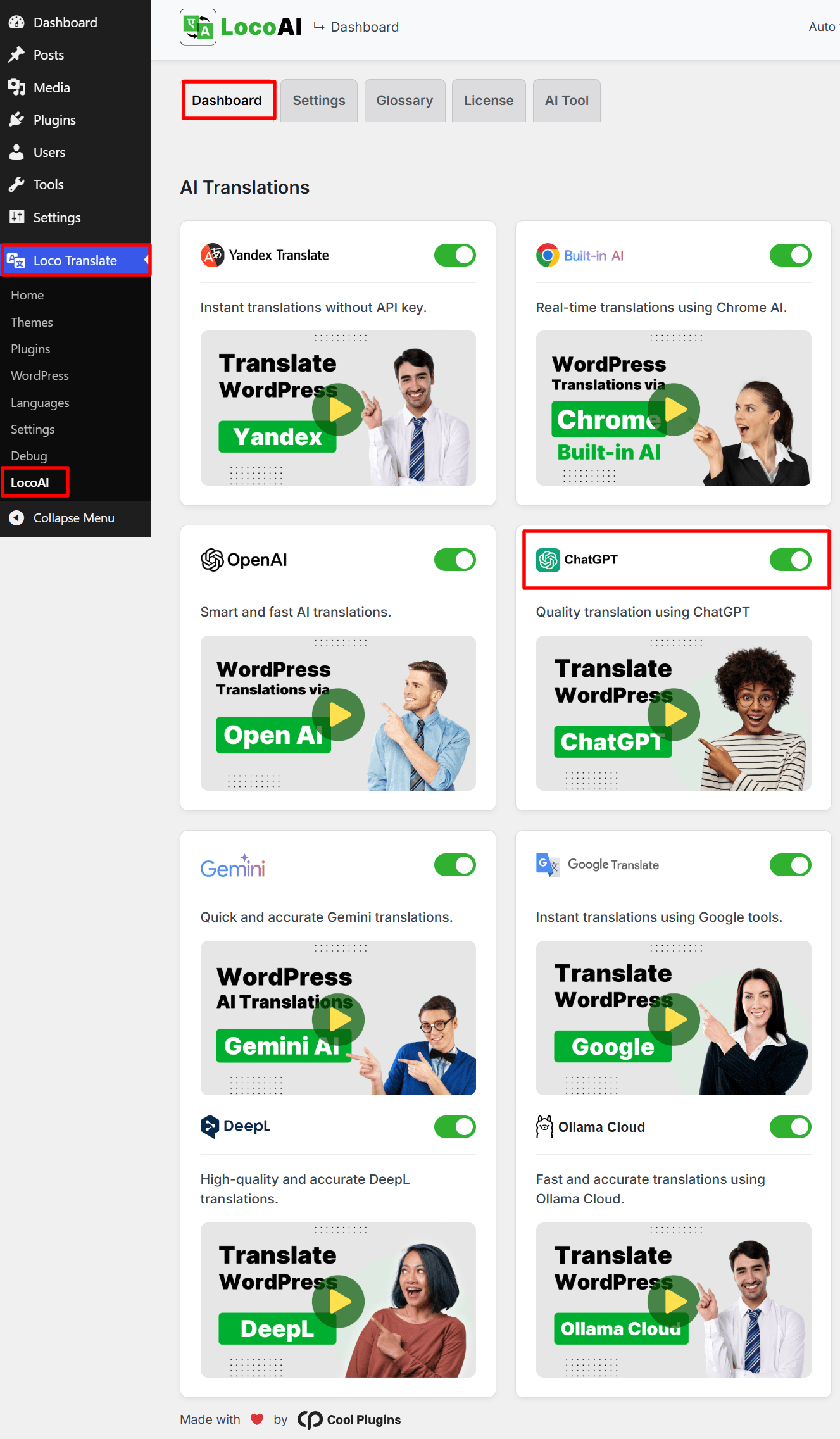
- Next, under the settings tab, locate ChatGPT.
- Choose your preferred translation method:
- Sign in with ChatGPT: Available for ChatGPT Go, Plus, and Pro users. Connect your ChatGPT account to translate strings automatically.
- Copy & Paste: Available for ChatGPT Free users. You need to copy and paste strings between LocoAI and ChatGPT manually.
- Select Sign in with ChatGPT to continue with automatic translation.
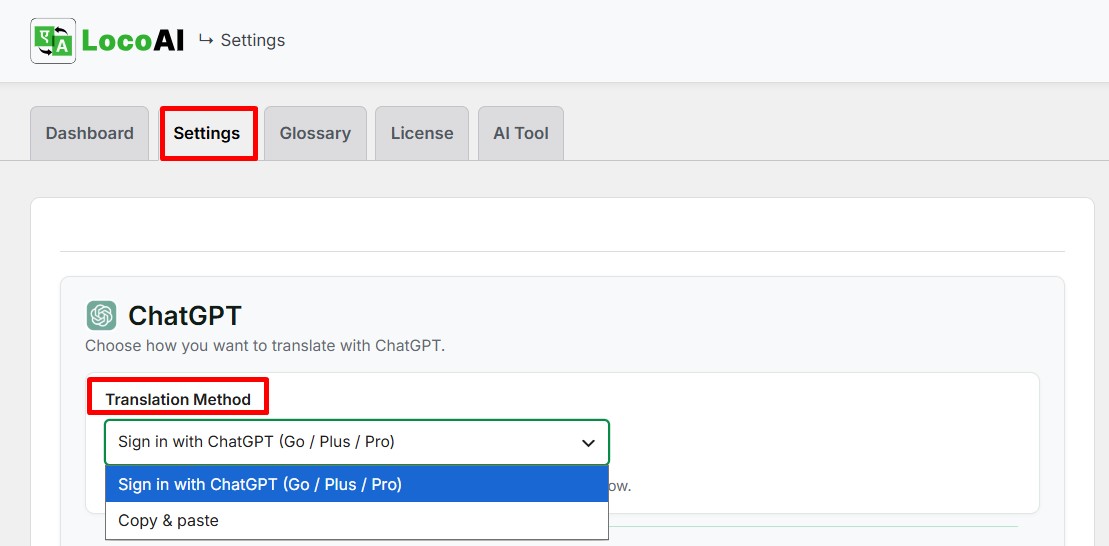
Note: The Sign in with ChatGPT method requires an eligible ChatGPT Go, Plus, or Pro subscription.
Connect Your ChatGPT Account
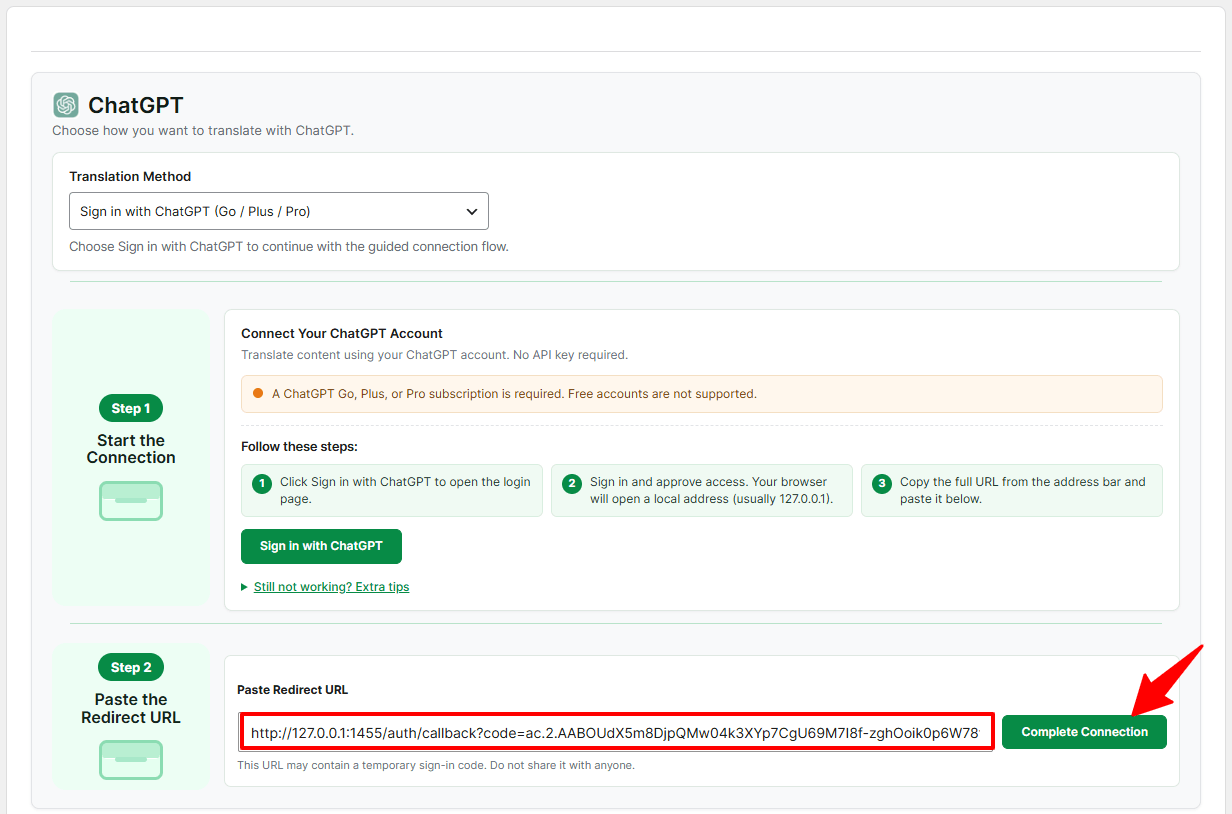
Once you select the Sign in with ChatGPT method, follow these two steps to connect your account:
- Click the Sign in with ChatGPT button.
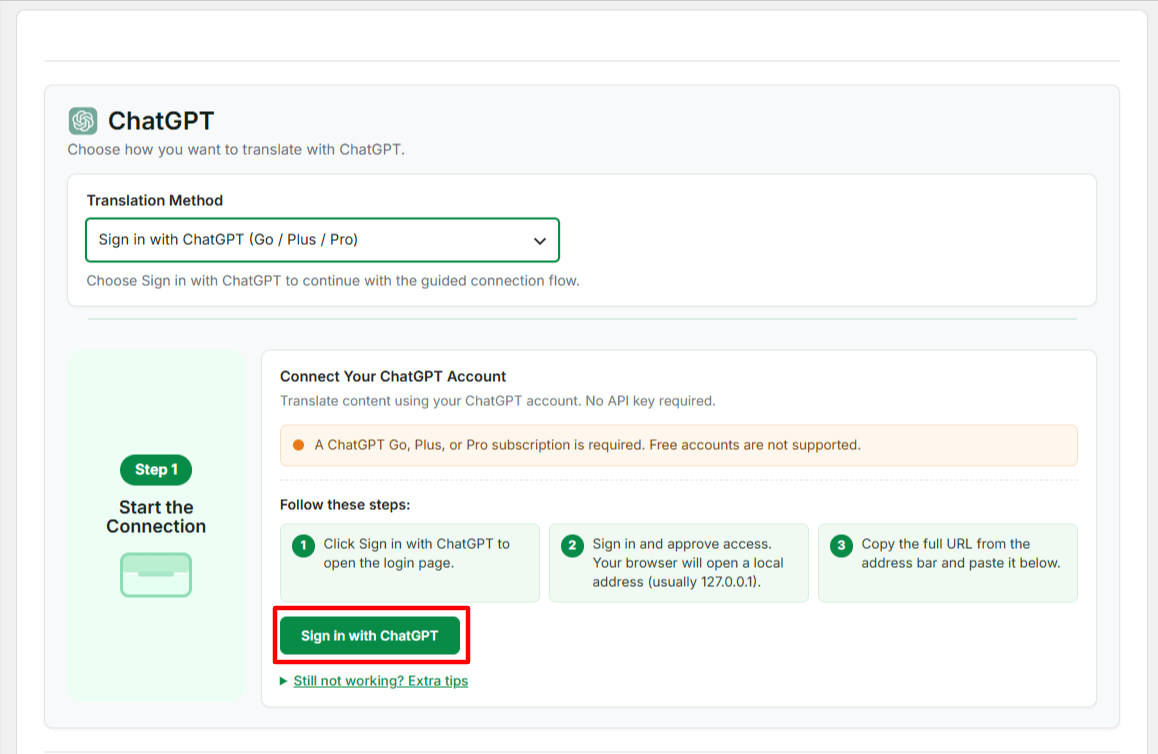
- You will be redirected to the ChatGPT authorization page.
- Sign in to your ChatGPT account and authorize the connection.
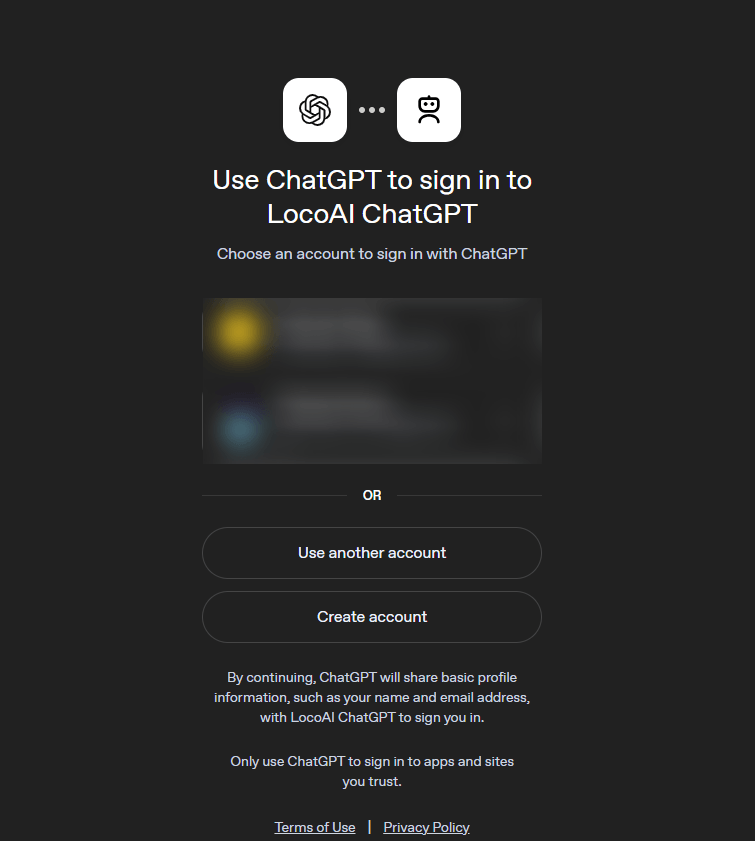
- After authorization, copy the Redirect URL from your browser.
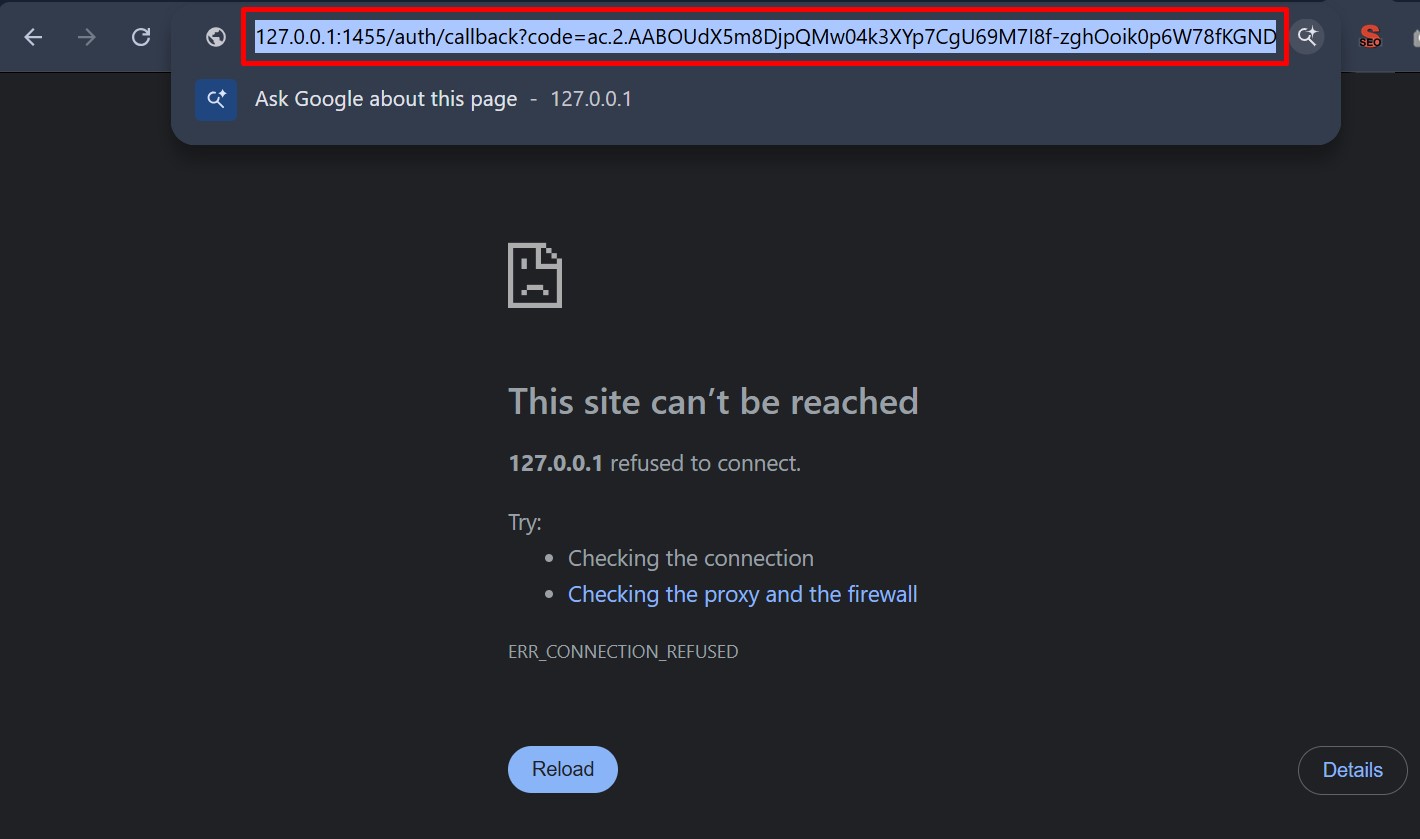
- Return to the LocoAI settings section, paste the copied URL into the provided field, and click the Complete Connection button.
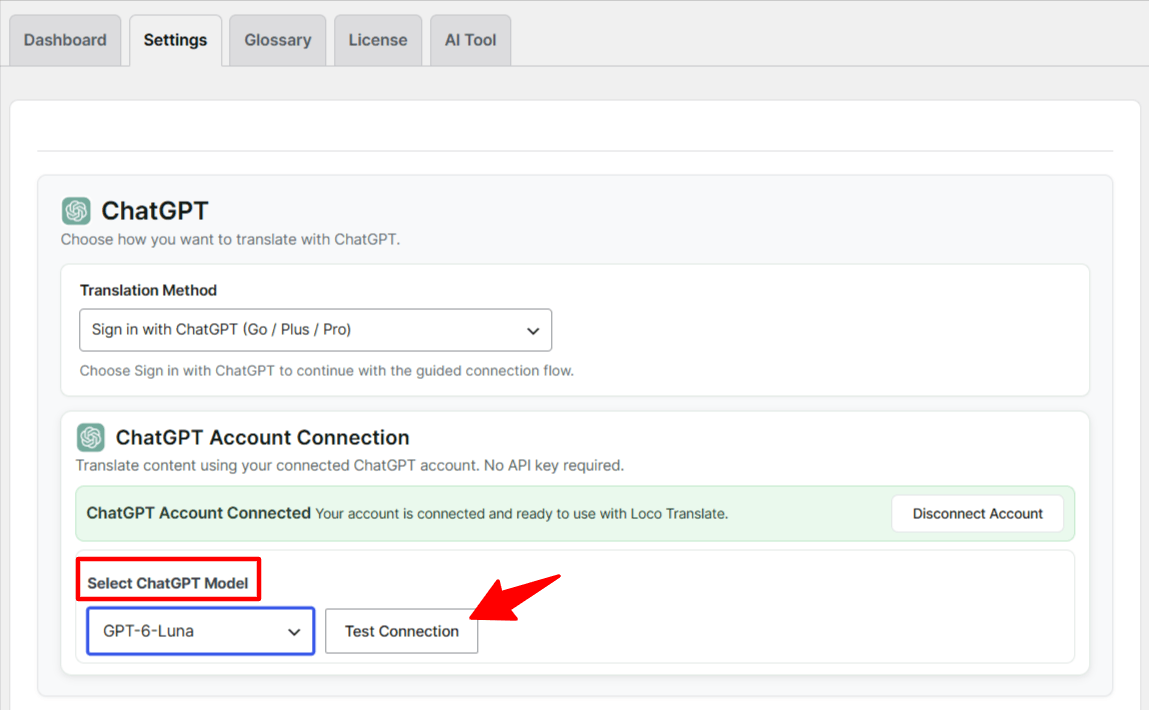
- Once connected, select your preferred ChatGPT model from the available options.
Test Your ChatGPT Connection
Before starting the translation, verify that your ChatGPT account is connected successfully.
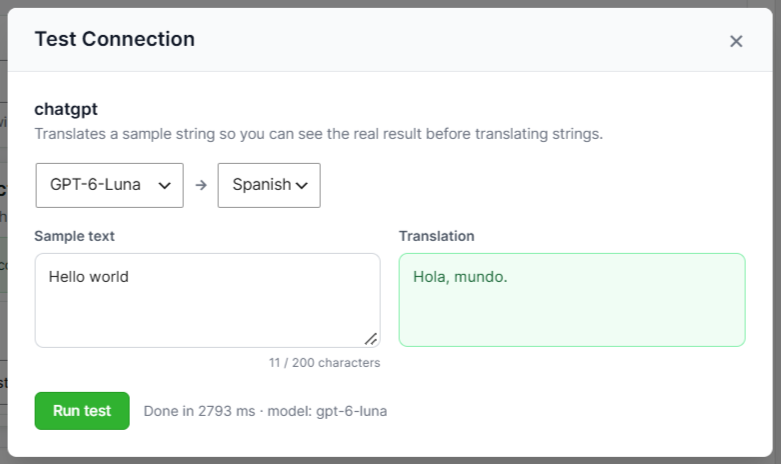
- Click the Test Connection button.
- A successful response confirms that your ChatGPT account is connected and ready for translation.
Select Translation Provider
- Click on the Auto Translate button.
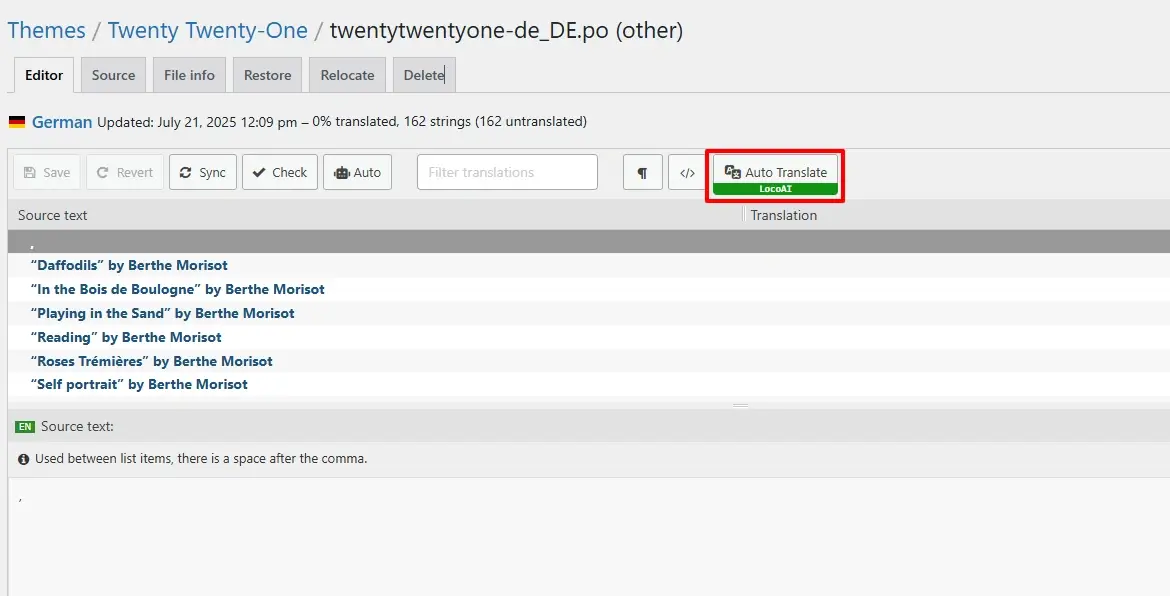
- A pop-up will appear. Select ChatGPT Translate for translations.
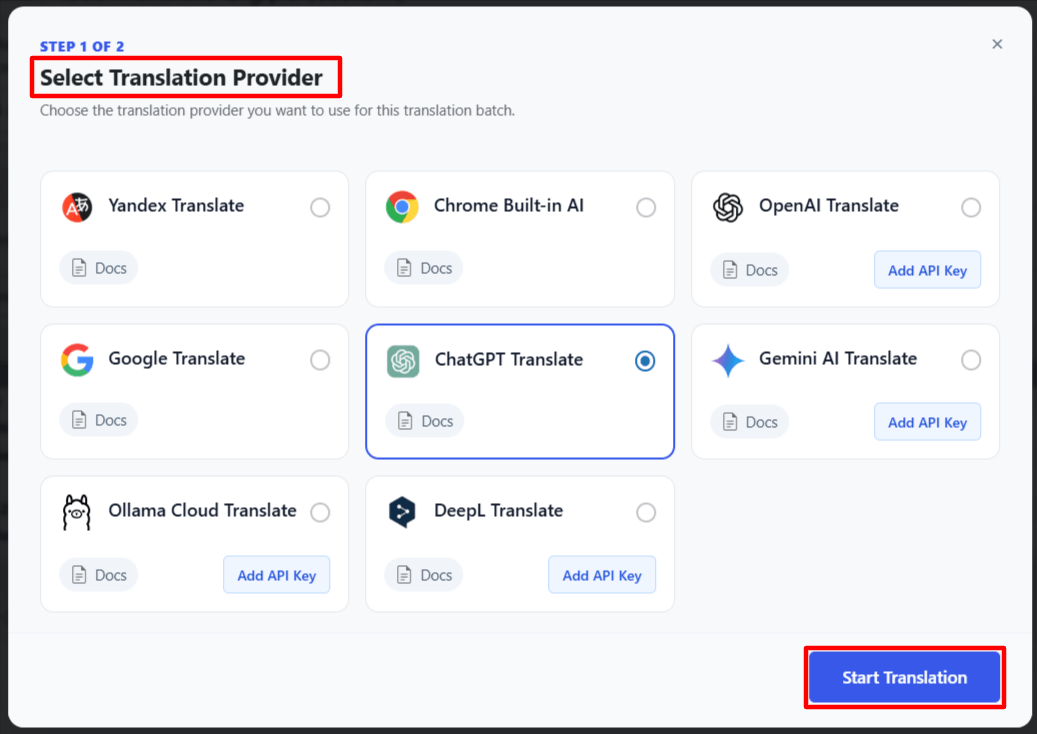
- Once you select ChatGPT Translate, click Start Translation, and automatic translation will begin.
Merge & Save Translations
- Once automatic translation is complete, click on Merge Translation button.

- Then, click on Start Adding Process.

- Once you click on Start Adding Process. All the translation will get added to the loco translator string table.
- Click on Save button.

*Note: that while machine translation tools like ChatGPT can be helpful, they may not provide perfect translations, and there may be inaccuracies or errors in the translation. Therefore, it’s always a good idea to have a professional translator review the translation if it’s critical for your business or organization.