How to Use Gemini AI/Open AI Inside LocoAI for Translations?

Last Updated:

Translate Plugin or Theme Via Gemini AI

Gemini AI and Open AI are powerful tools that can be used to translate plugins or themes in WordPress. Once you select the language in which you want to translate your theme or plugin, follow these simple steps:

Setting Up Gemini/Open AI for Translation

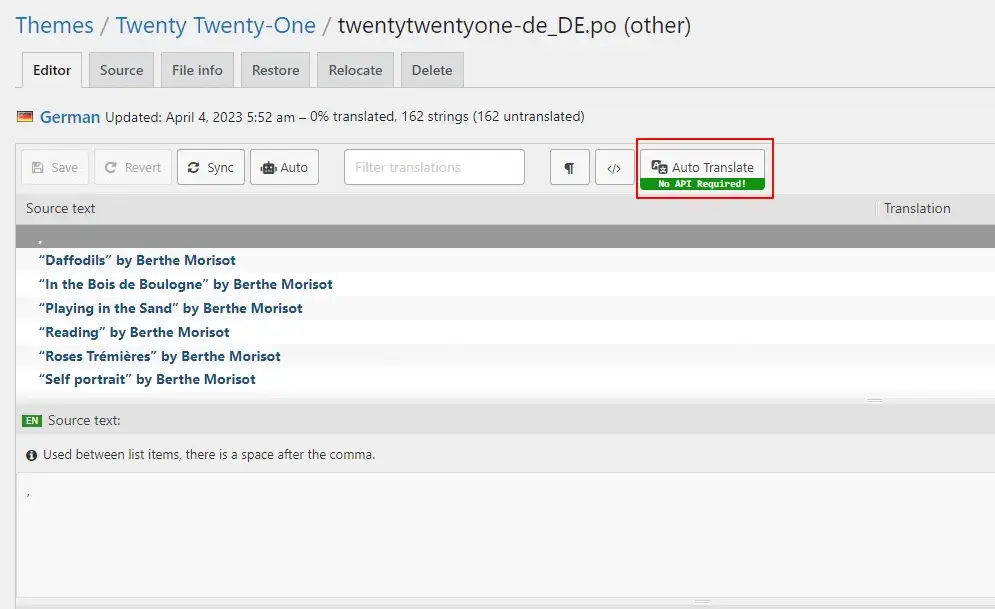
  1. Click on the Auto Translate button.
  1. A pop-up will appear. If you want to translate using Gemini AI, you must first add the Gemini API key.
  2. If you want to translate using Open AI, you must first add the API key. Once you click on ‘Add API Key’, the Translator Auto-Translate Settings Dashboard will open.
Select Gemini AI or Open AI
  1. You need to add your Gemini/Open AI API key and click the save button.
Add API keys
  1. After adding the API key, click on the ‘Auto Translate’ button to open this popup, and then click on the ‘AI Translate’ button.
Gemini or Open AI Translate
  1. A window will open displaying a table of strings from your theme or plugin. Select one from Gemini AI/Open AI to initiate the translation process.
Select Gemini or Open AI
  1. The translation process will begin. You can monitor the progress in this popup. Please wait until the translation process is complete
Translation process
  1. Click on Merge Translation. In this pop-up, you can view your translated strings in this table.
Translated content
  1. A pop-up will appear. Click on Start Adding Process.
Start adding process
  1. Once you click on Start Adding Process. All the translations will get added to the loco translator string table.
Save translations
  1. Click the Save button and then refresh the page.

Note that while automatic translation tools can be helpful, they may not provide perfect translations, and there may be inaccuracies or errors in the translation. Therefore, it’s always a good idea to have a professional translator review the translation if it’s critical for your business or organization.

In This Article

Share it
Need Help? Contact Our Support Team

Limited Time Special Offer

UP TO 40% OFF

259200

OFFER ENDS IN:

D
H
M
S
Year End Sale
save up to 40% off

Offer
ends in:

Days
Hours
Min
Sec
Christmas
Special Sale

Upto

40%

OFF

Ends in

Days
Hours
Min
Sec

SUPER SALDI

upto
40% off

SUPER SALE

up to
40
%

off

Offer
ends in:

Days
Hours
Min
Sec

SUPER SALDI

upto
40% off

SUPER SALE

up to
40
%

off

Offer
ends in:

Days
Hours
Min
Sec

SUPER SALDI

upto
40% off
Independence
Day Sale

SUPER SALE

up to
40
%

off

Offer
ends in:

Days
Hours
Min
Sec

SUPER SALDI

upto
40% off

Offer
ends in:

Days
Hours
Min
Sec

SUPER SALE

up to
40
%

off

SUPER SALDI

upto
40% off
Mid-Year Special Sale
save up to 40% off

Offer
ends in:

Days
Hours
Min
Sec
Summer sale
save up to 40% off

Offer
ends in:

Days
Hours
Min
Sec
WordPress Birthday Sale
Celebrate with Big Savings

Offer
ends in:

Days
Hours
Min
Sec

SUPER SALE

up to
40
%

off

SUPER SOLDES

upto
40% off
WordCamp Asia Celebration Sale
Made for WordPress Lovers

SUPER SALE

up to
40
%

off

Offer
ends in:

Days
Hours
Min
Sec

SUPER SALDI

upto
40% off
save up to 40% off

SUPER SALE

up to
40
%

off

Offer
ends in:

Days
Hours
Min
Sec
save up to 40% off

Offer
ends in:

Days
Hours
Min
Sec
save up to 40% off

Offer
ends in:

Days
Hours
Min
Sec
save up to 40% off

SUPER SALE

up to
40
%

off

Offer
ends in:

Days
Hours
Min
Sec
New Year Sale
save up to 40% off

Offer
ends in:

Days
Hours
Min
Sec
Christmas Special Sale
Upto 40% OFF
Christmas
Special Sale

Upto

40%

OFF

Ends in

Days
Hours
Min
Sec