Microsoft provides the Azure Translator Text API, which allows you to integrate translation capabilities into your applications. However, please note that Microsofts services and offerings may change over time. To generate an API key for the Microsoft Translator service, you can follow these general steps:
4 Simple Steps to Generate Microsoft Translator API Key
Step 1: Accessing the Azure Portal
- Visit the Azure portal at https://portal.azure.com and sign in with your Microsoft account or create a new one if needed.
- Create a new Azure subscription or use an existing one.
Step 2: Create a Resource in Azure
- Go to the Azure portal dashboard and click on “Create a resource.”
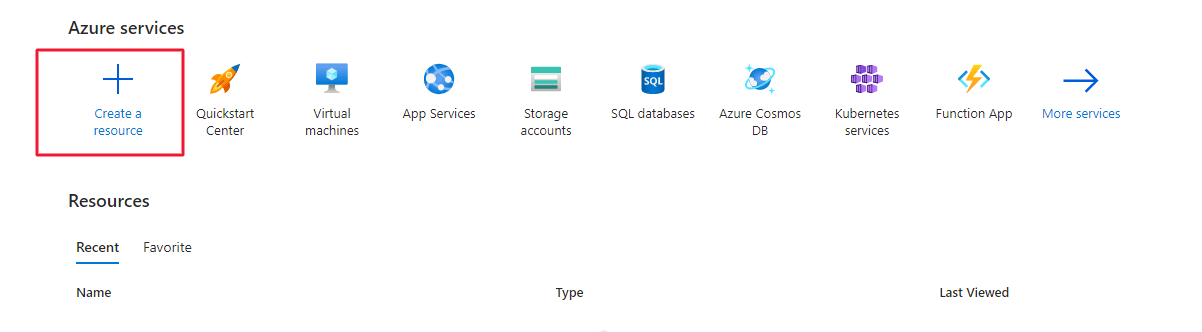
- In the search box, type “Translator Text” and select “Translator Text” from the search results.
- On the Translator Text page, click the “Create” button.
Step 3: Configure Translator Text Resource
- Fill in the required information, such as:
- Subscription
- Resource Group
- Name
- Pricing Tier
- Review the terms and conditions, select the checkbox to agree, and click the “Create” button.
Step 4: Access API Keys
- Once the deployment is complete, navigate to the resource you just created.
- In the left-hand menu, under the “Resource Management” section, click on “Keys and Endpoint“.
- You will see two keys labeled “Key1” and “Key2.” Either key can be used for authentication purposes.
- Click the copy button next to one of the keys to copy it to your clipboard.

Final Thoughts
At this point, you have successfully generated an API key for the Microsoft Translator service. Remember to keep your API key secure and do not share it publicly. You can use this key to make API calls and integrate translation capabilities into your applications.
We recommend referring to the official Microsoft Azure documentation or the Azure portal itself for the most up-to-date and accurate instructions on generating an API key for the Microsoft Translator service.